In the last post, I promised to cover free accessibility checkers: what they find, and why 50% is still a good start. The checker I use is axe DevTools, and on a page I built to test it, it found about half the problems.
This is the second post in a series of checks you can do on a website yourself, without paying anyone. The first one was about turning off the accessibility overlay so you can see how the site was built. This one is the check you run once it’s off.
Why axe DevTools.
There are many free checkers, and they don’t all show you the same problems in the same way. I use axe DevTools, from a company called Deque. It’s free, it works in Chrome, Firefox, and Edge, and it’s pretty much the standard for the people who audit and fix websites for a living. It’s also the tool I used in my accessibility talk at StartingBlock, so the example below comes from that demo.
The one catch is that axe lives inside your browser’s developer tools, the panel web developers use to look under the hood of a page. That panel looks technical the first time you open it. The only part you need is the axe DevTools tab, and you can ignore everything else in the panel. The steps below show you exactly where to click.
You may have heard of WAVE, from WebAIM. A lot of people like it because it marks up the page itself in bright colors. On a first look, WAVE puts so many icons on the page that the problems that matter get lost, so I don’t start there.
How to run it.
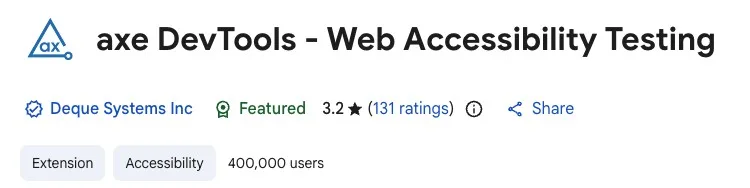
- Open the page you want to check.
- Open the developer tools. On a Mac, press Command + Option + I. On Windows, press F12. You can also right-click anywhere on the page and choose Inspect.
- Find the tab called axe DevTools. If you don’t see it, it may be hiding behind the two little arrows (») at the top of the panel.
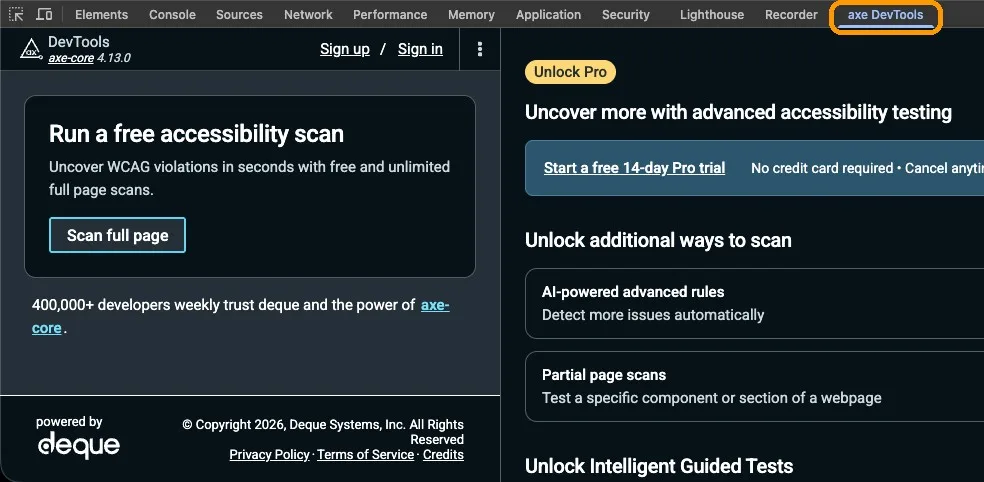
- Click Scan full page.
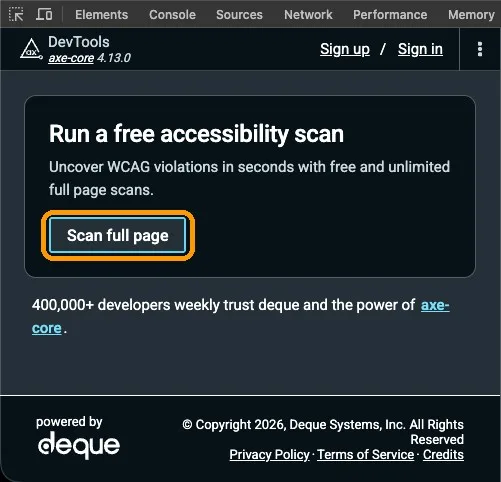
The free version checks the page against WCAG 2.1 AA, the version of the accessibility standard the Department of Justice chose for state and local government websites.
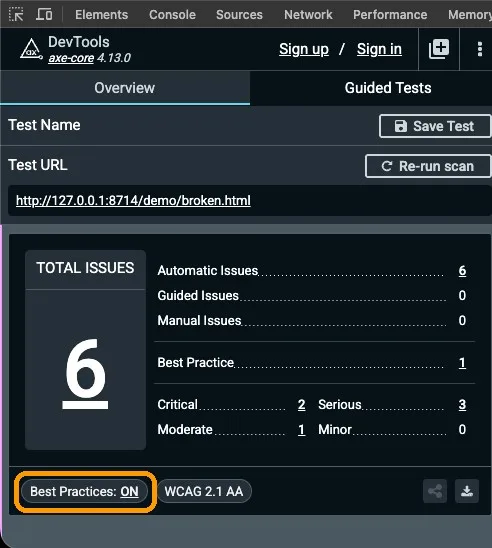
Once the check runs, you’ll see a setting at the bottom left called Best Practices. I always leave it on. Best practices aren’t part of WCAG, so a site can pass the standard without them. Think of them as extra credit: if you’re aiming for a passing grade, you can turn the setting off, and if you want an A+, leave it on.
What it found.
In my talk, I used a made-up coffee shop called Kettle & Crumb. I built its homepage with problems I put there on purpose, and I knew where every one of them was. axe DevTools found six issues on it.
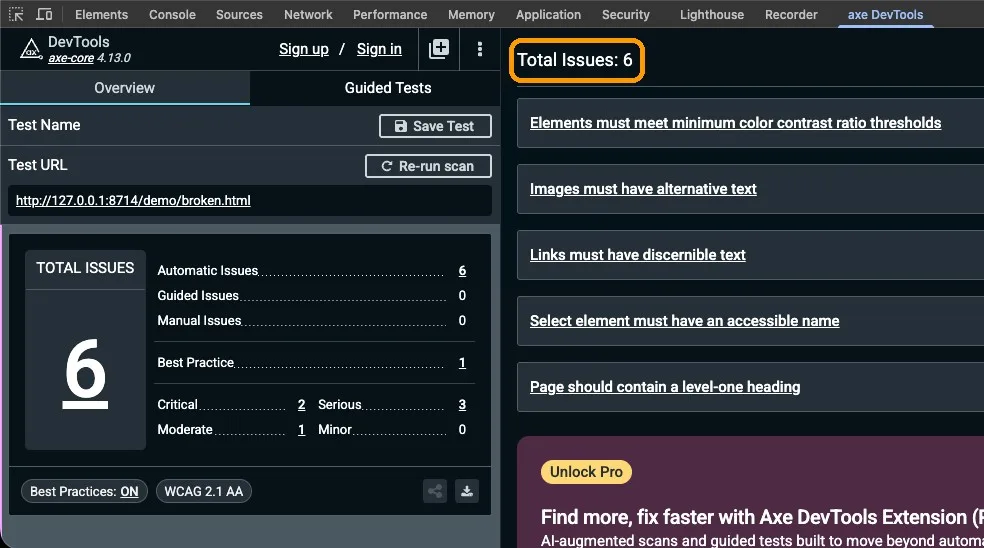
- Two orange buttons had white text that was too light to read against the orange.
- The picture of a coffee cup had no description, so someone using a screen reader would hear “image” and nothing else.
- The phone icon at the top of the page didn’t say what it was. A screen reader would announce it only as “link.”
- The “team size” dropdown on the quote form had no name, so a screen reader user wouldn’t know what question they were answering.
- The page had no main heading at the top to say what the page is about. (This one is the best practice. Turn the setting off, and it disappears from the list.)
When you click an issue, axe tells you which rule it breaks and highlights the spot on the page. The wording comes straight from the standard, so it sounds a little formal. You don’t need to memorize it; you only need to find the thing it’s pointing at.
You can try it yourself before you check your own site. The Kettle & Crumb practice page is online, so you can run axe on it and see whether you get six too. There’s also a fixed version, where axe finds zero.
Why half is a good start.
That page had about twice as many problems as axe found. A person testing with only a keyboard found three more, and a screen reader found two more after that. So the free checker found about half.
Half is a good start because it’s better than not starting at all. Every issue on that list is one a visitor would have run into, and now you know where it is. (If you want to know what a checker can’t tell you, I wrote about that in 230 elements need manual review, not 230 problems.)
What you can fix yourself.
Most of what axe finds falls into one of three groups: content, settings, or code. Content is the part you already edit, and you should be able to fix most of it yourself.
- A picture with no description. Most website editors have a box for this next to the image. Describe the picture the way you’d describe it to someone over the phone.
- A page with no main heading. Add one at the top that says what the page is about, like “Office coffee and catering” or the name of your business.
Settings are the choices someone made once for the whole site, like its colors and fonts. Button text that’s too light usually lives there. If your site’s settings offer a few colors for buttons, switch to a darker one, so it changes on every button at once. Please don’t fix one button and leave the rest. If there’s no setting for it, the color is in the code.
Code is the part someone built, and it usually belongs to your web person. The phone icon is a good example. Fixing it means finding where the icon was added and giving it a name a screen reader can read, and that can take a long time to dig for if you didn’t build the site. Of course, if you want to go looking, go for it.
If it finds nothing.
If axe comes back with zero issues, that’s pretty awesome. My reasonable paranoia would still make me try the next check, though, because the other half of the problems on the Kettle & Crumb page were ones axe couldn’t see. I’ve never checked a real site that came back with zero, except my own, and that was after I’d fixed it. I’d want a second opinion before I believed it.
The next post in this series will be that second opinion: putting the mouse away and moving through the page with only your keyboard.
If the developer tools are further into the browser than you want to go today, you can start with my free site scan. It runs the same checker behind the scenes on up to 20 pages of a site and emails you the report. And if even that feels like more than you have time for, that’s a good sign it’s time to call me, or someone like me.