If you want to do right by disabled visitors and your budget is small, an accessibility overlay looks like the answer. It’s the accessibility button you see in the corner of some websites, it costs less than an audit, and it promises to handle accessibility for you.
This is the first post in a series of checks you can do on a website yourself, without paying anyone. It starts with the overlay, because many of the sites I look at already have one.
What the overlay does.
An overlay lets a visitor change how the page looks or sounds: bigger text, inverted colors, a voice that reads the page out loud. That sounds helpful, and for some people it might be.
The catch is that most people who need those changes already have them. Someone who needs large text sets it once on their own computer or phone, and it works on every website they visit, not only the ones with an overlay. Someone who’s blind already has a screen reader, and they know it far better than any overlay’s version of it.
The bigger problem is underneath. An overlay doesn’t change how the site was built. It runs on top of the page after it loads and tries to patch what it finds, so the best case is that it hides some problems or makes them a little better. More often than not, its own code gets in the way of the tools disabled visitors already use.
The overlay can make a checker say a form is fine.
I tested a page on a site that has an overlay. I ran my accessibility checker with the overlay turned on, and it didn’t flag the form’s boxes. Then I turned the overlay off and ran the checker again. It found three boxes on the form with no name next to them. Two had only gray text inside the box, which disappears as soon as someone starts typing.
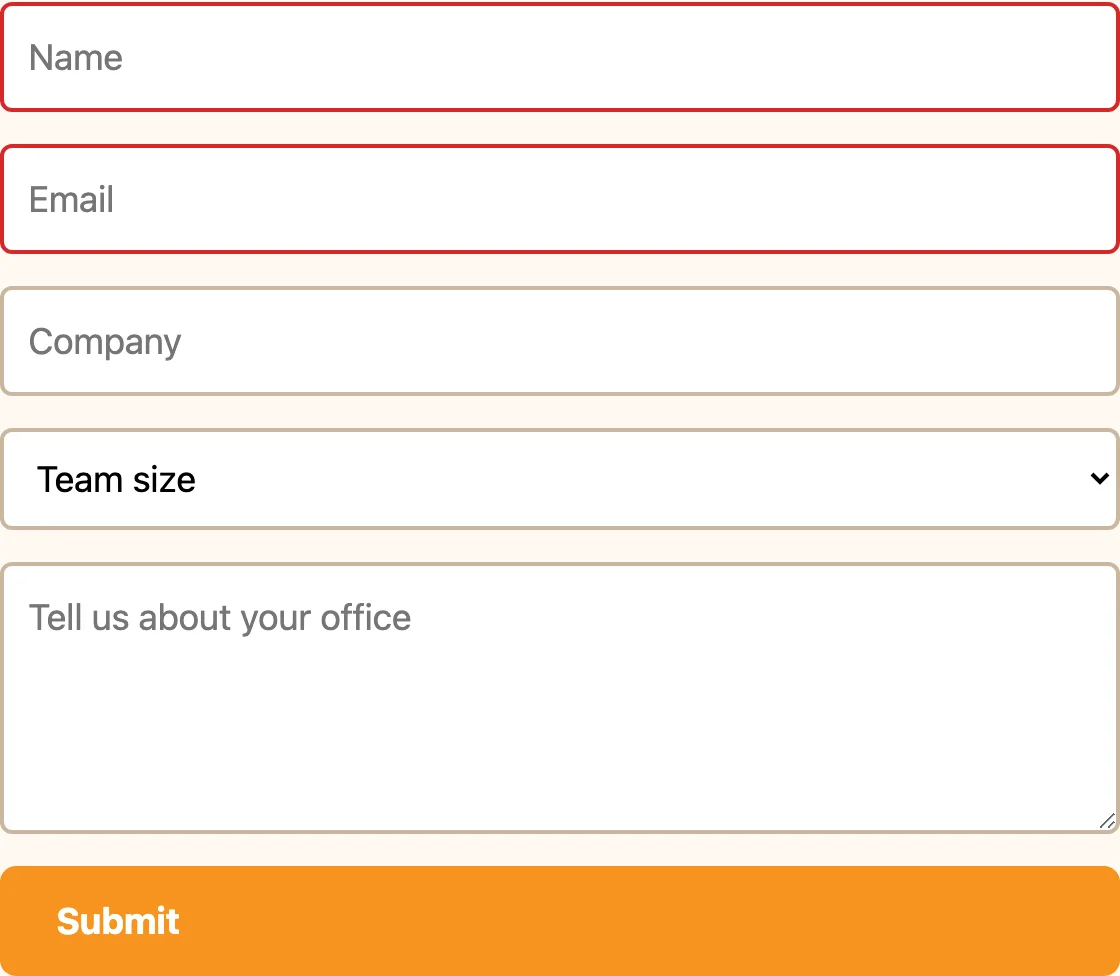
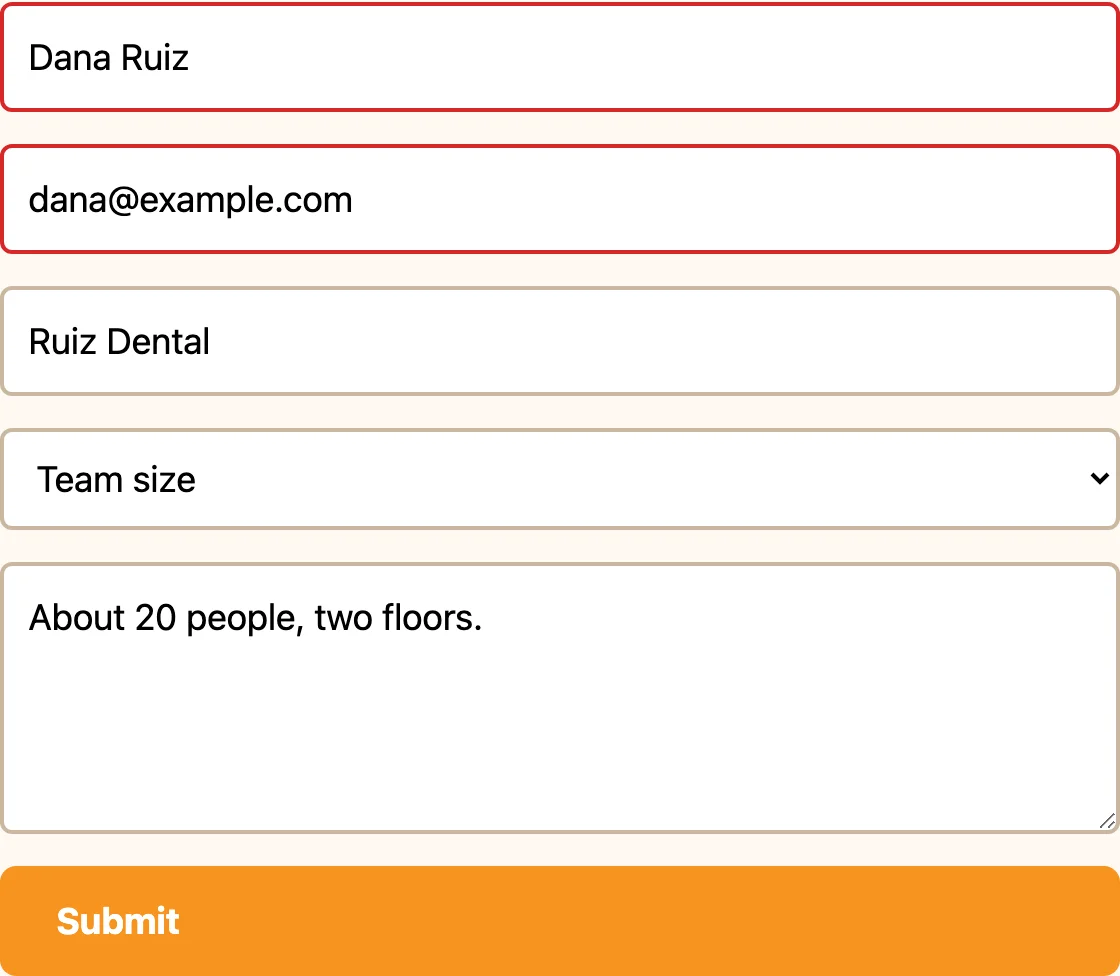
The third had a name that shows up only when you hold the mouse over it. A visitor who loses track of which box they’re in has nothing to look back at, and the overlay didn’t change that. It only changed what the checker reported. (Form boxes get their own post later in this series.)
If you already have one.
Maybe you’re paying for an overlay, or your page builder turned one on for you. You don’t have to decide anything about it today. You can test it first.
- Turn the overlay off. It’s usually a plugin, an app, or a line of code someone pasted into the site’s settings.
- Run a free accessibility checker on the page and note what it finds.
- If you’re curious, turn the overlay back on and run the checker again.
The difference between the two runs tells you what the overlay is doing. The first run is the honest picture of how the site was built.
What the overlay costs.
In January 2025, the Federal Trade Commission ordered accessiBe, one of the best-known overlay companies, to pay $1 million. The FTC said accessiBe claimed its AI tool could make any website compliant with WCAG (the accessibility standard most laws point to), and it said the company didn’t disclose its ties to reviewers who praised it. The final order, approved in April 2025, bars accessiBe from claiming its automated products can make a website compliant, or keep it compliant, without evidence. (FTC, January 2025; FTC, April 2025)
accessiBe’s overlay still sells. When I checked its pricing page on November 8, the plans started at $59 a month or $490 a year, and the biggest plan with a posted price was $479 a month or $3,990 a year.
What to do with that money and time instead.
If the site runs on WordPress, start with Editoria11y. It’s a free plugin, and I’ve used it enough to trust it. When you’re logged in and looking at a page, it marks the problems it finds right on the page and tells you what each one means. It also keeps a site-wide list, but only of the pages someone has opened while logged in, so the first job is to click through every main page of the site. That takes an afternoon, not a budget. (Paid tools catch more than Editoria11y does, but the free one is a real start.)
If the site doesn’t run on WordPress, you can start today with my free site scan. It works on any website, whatever it was built with.
The next posts in this series will each give you one check you can do without help. The next one covers free accessibility checkers: what they find, and why 50% is still a good start.
Too much work? Here’s why an audit isn’t $300.
Some people read that list and would rather pay someone. That’s a fair choice, and it’s where an audit comes in. My accessibility audit starts at $1,500, which is about what one year of accessiBe’s middle plan costs ($1,490 when I checked).
The difference is what you get at the end. An overlay is a subscription; when you stop paying, you’re back where you started. An audit checks every page, not a sample, with automated tools and a person who reviews what the tools can’t judge. You get a plain-language report of what’s wrong and what to fix first, plus an estimate for the fixes. Once those fixes are in, they stay fixed, and a plugin like Editoria11y helps keep the site that way as you add new pages.
If an audit is the step that fits, here’s how mine works. If it isn’t, start with the checks in this series. Either one does more for your visitors than the button in the corner.